Windows 10 End of Life: What It Means, What Still Works, and Your Best Options Now

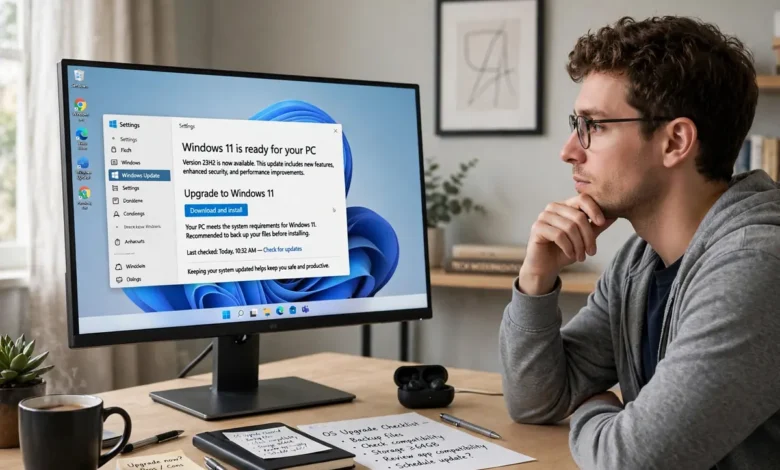
Windows 10 end of life happened on October 14, 2025. Microsoft ended normal support for Windows 10 version 22H2 on that date, so a PC that is not enrolled in Extended Security Updates no longer receives security patches, bug fixes, or technical support from Microsoft. Your computer did not stop working, and it will still boot, open your files, and run most of your apps. What changed is protection. New flaws found in Windows 10 now stay open on an unprotected PC, and that gap grows wider every month.
You still have workable choices in October 2026. If your PC meets the Windows 11 requirements, upgrading is free and gives you a supported system again. If it does not, the Windows 10 extended security updates program can keep a personal PC patched until October 12, 2027, often at no cash cost. And if neither path fits, ChromeOS Flex, Linux, a limited offline role, or a new PC can each make sense for the right person. The sections below walk through each option, the exact dates, and the risks of doing nothing.
What Does Windows 10 End of Life Actually Mean?
End of life means Microsoft has closed the book on Windows 10 as a supported product. Windows 10 support ends October 2025 in Microsoft’s lifecycle records, with version 22H2 confirmed as the final version. There will be no version 23H2, no new features, and no routine fixes outside the enrolled update programs described later.
Three things stopped for PCs outside those programs:
- Security updates for the operating system itself, including fixes for the kernel, drivers, and built-in services
- Non-security bug fixes and reliability updates
- Free technical support from Microsoft for Windows 10 problems
One point causes a lot of confusion. End of support is not a shutdown. Microsoft did not remotely disable anything, your licence did not expire, and your files are untouched. A Windows 10 PC in October 2026 looks and feels much like it did a year ago. The difference sits under the surface, in the patches it is no longer getting.
Why the October 2026 Date Still Shows Up Everywhere
If you have searched this topic recently, you have probably seen October 13, 2026 named as a deadline. That date was real. The consumer Extended Security Updates program was first set to run for one year, ending October 13, 2026, and the first year of the separate commercial program ends then too.
In June 2026, Microsoft quietly extended the consumer program. An editor’s note added on June 25, 2026 to a Microsoft Windows blog post confirmed an extra year, and Microsoft’s consumer ESU page now gives October 12, 2027 as the end date. Older articles and forum posts were never updated, so both dates still circulate. For a personal PC enrolled in consumer ESU, October 12, 2027 is the current date that matters. For a business PC on commercial ESU, the yearly structure still applies, and that program runs longer, as explained below.
What Still Works on Windows 10 — and What Does Not
Plenty still works, which is exactly why so many people have delayed deciding. Your existing programs keep running. Your printer, monitor, and other hardware keep working with the drivers they already have. Files, photos, and settings stay where they were.
Some Microsoft components also keep updating for a while, separate from the operating system. Microsoft Defender Antivirus continues to receive security intelligence updates, meaning new malware definitions, through October 2028. Microsoft Edge also continues to receive updates on Windows 10 version 22H2, so the browser itself is not frozen in 2025.
Those updates help, but they have a hard limit. Defender can recognise known malware, and Edge can patch its own flaws. Neither one can fix a hole in Windows itself. If a new flaw appears in a core Windows service, only an operating system patch closes it, and that is the part that stopped in October 2025 for anyone outside ESU.
The slow decline shows up elsewhere too. Over time, new app versions and new hardware are tested mainly against Windows 11. A program you rely on may ship an update that no longer supports Windows 10, and a new printer or graphics card may arrive with Windows 11 drivers only. Nothing breaks all at once. Support narrows, one product at a time, until staying put costs more effort than moving.
What Are Windows 10 Extended Security Updates (ESU)?
Windows 10 extended security updates are Microsoft’s temporary bridge for people who need more time. ESU delivers critical and important security updates, as Microsoft’s security response team classifies them, to enrolled Windows 10 version 22H2 PCs. That is all it delivers. The program includes no new features, no non-security fixes, and no technical support.
Think of ESU as patching only. It keeps the most serious holes closed while you plan a move to Windows 11 or a replacement PC. It does not turn Windows 10 back into a supported operating system, and it has a firm end.
How Long Does Consumer ESU Last Now?
For personal devices, ESU now runs through October 12, 2027. If you enrolled before the June 2026 extension, Microsoft says your coverage continues automatically to the new date. You do not need to enrol again, and you do not pay again.
If you have not enrolled yet, you still can. Microsoft says enrolment stays open until the program ends, and a PC that enrols late receives the critical and important updates released since support ended. That backfill helps, but Microsoft also warns that a device is more exposed during the months it spent unenrolled, so enrolling today is better than enrolling next spring.
Who Can Enrol, and Who Cannot?
The consumer program is built for personal PCs. Your device needs to meet all of these conditions:
- Windows 10 version 22H2, in the Home, Pro, Pro Education, or Pro for Workstations edition
- The latest available Windows updates installed
- An administrator Microsoft account signed in on the PC, and that account cannot be a child account
Some PCs are excluded even if they run version 22H2. A PC joined to an Active Directory or Microsoft Entra domain, a PC managed by an organisation’s device management tools, and a PC running in kiosk mode do not qualify. Those machines belong to the commercial program, which an employer or IT provider handles. A personal PC that is merely registered with a work or school account, without being joined or managed, can still qualify.
How Much Does ESU Cost?
Microsoft offers three enrolment routes for consumers, and all three give the same updates:
- Sync your settings with Windows Backup — sign in with a Microsoft account and back up your PC settings, and enrolment carries no additional cash cost
- Redeem Microsoft Rewards points — enrolment costs 1,000 Rewards points
- Pay once — a one-time payment of $30 plus tax, or the local currency equivalent
One enrolment tied to a Microsoft account can cover up to 10 devices signed in with that same account, which makes the paid route cheaper per PC for a household with several older machines. Rules vary by region. In the European Economic Area, for example, enrolment is offered at no additional cost for users signed in with a Microsoft account, with periodic sign-in required to stay covered. Check the offer shown on your own PC, since Microsoft notes that options and timing can differ by market.
Business pricing is a different scale entirely. Commercial ESU started at $61 per device for the first year, and Microsoft states the price doubles each consecutive year, reaching $122 in year two and $244 in year three, with commercial coverage available through October 2028. That maths is why most organisations upgrade or replace PCs instead of paying for the third year.
How to Enrol in ESU, Step by Step
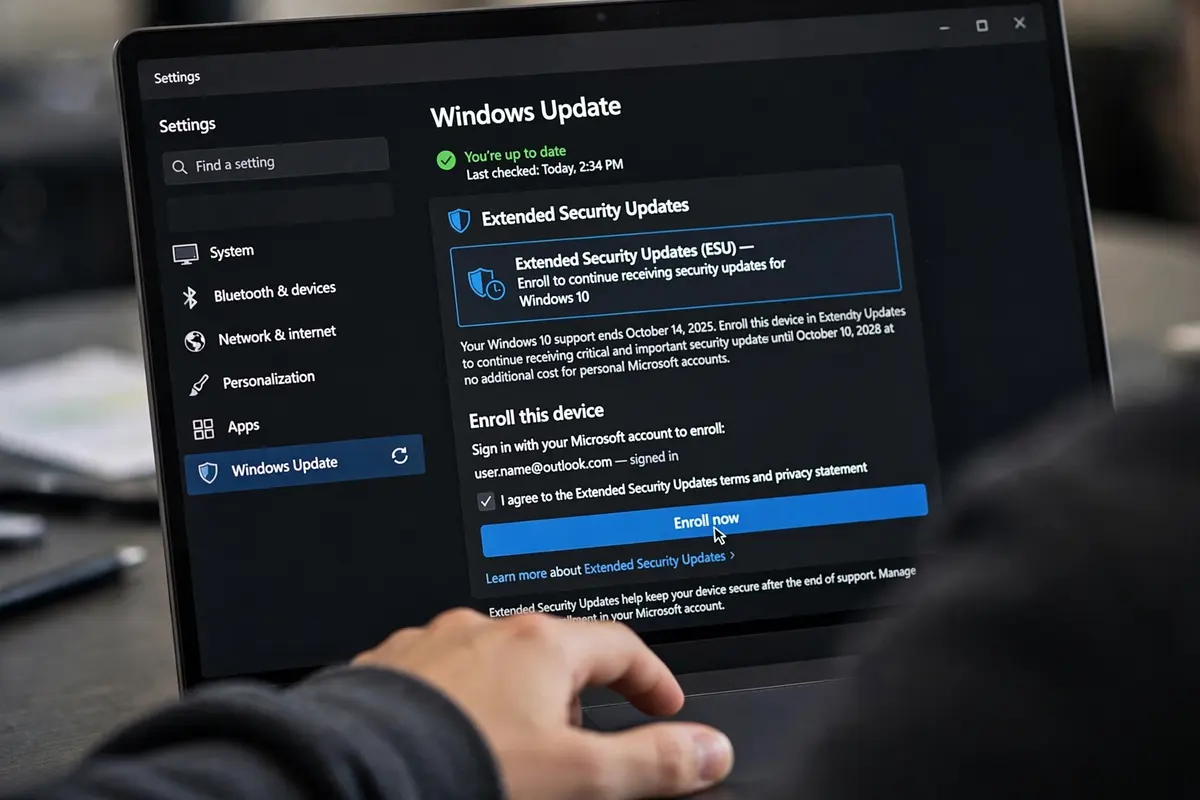
Start by confirming your version. Press the Windows key + R, type winver, and check that it says version 22H2. Then open Settings, go to Update & Security, then Windows Update, and install every pending update. The enrolment option only appears once the PC is current.
Next, select Enroll now on the Windows Update page. Sign in with your administrator Microsoft account if asked, then pick one of the three routes above. After enrolment, the Windows Update page shows a message confirming the PC is enrolled in Extended Security Updates. Keep using the same Microsoft account, since the entitlement is tied to it.
One safety note belongs here. Genuine ESU enrolment happens inside Windows Settings on your own PC. It never requires a phone call, a gift card, or a stranger connecting to your computer remotely. Anyone offering to “activate” ESU that way is running a scam, and our related tech guides include a plain walkthrough of how to tell if content is AI-generated or faked, which is worth reading before you trust a pop-up or a support page that appeared out of nowhere. For day-to-day developments on stories like this one, our tech news and AI portal coverage tracks the changes as Microsoft adjusts its programs.
Can Your PC Upgrade to Windows 11 for Free?
For most people, this is the best answer. The upgrade from Windows 10 to Windows 11 is free for an eligible PC with a valid Windows 10 licence, and it restores full support, features, and security updates in one move. Microsoft’s minimum requirements for Windows 11 are:
- A compatible 64-bit processor running at 1 GHz or faster with 2 or more cores
- 4 GB of RAM
- 64 GB of storage or larger
- UEFI firmware with Secure Boot capability
- A Trusted Platform Module (TPM) version 2.0
- A graphics card compatible with DirectX 12 or later, with a WDDM 2.0 driver
- A high-definition 720p display larger than 9 inches diagonally
The processor rule catches more people than the raw numbers suggest. Microsoft keeps a list of supported processors, and many PCs built before roughly 2018 use chips that are not on it, even when the PC has plenty of RAM and storage. TPM 2.0 is the other common blocker, although the story there is often happier. Many PCs have TPM 2.0 hardware that is simply switched off in firmware, listed as PTT on Intel systems or fTPM on AMD systems. Enabling it, and turning on Secure Boot, can turn a failed check into a pass without spending anything.
How to Check Compatibility in Two Minutes
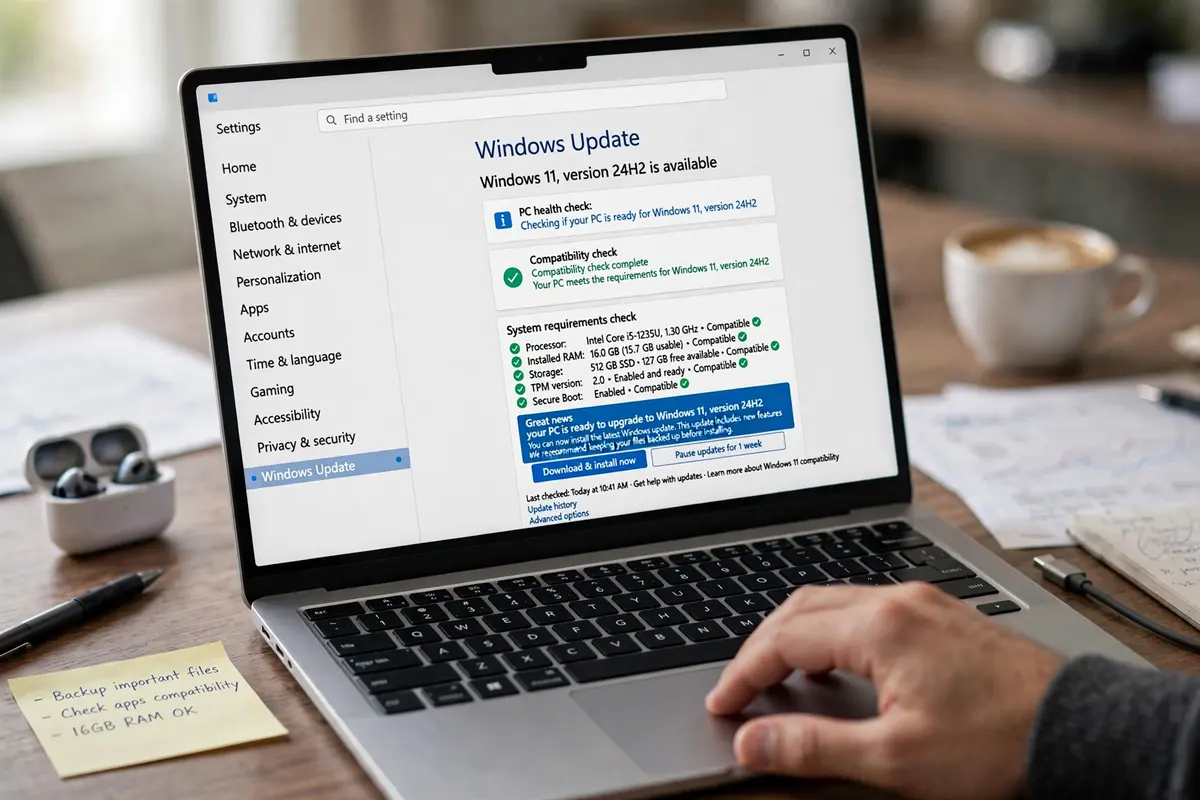
Download Microsoft’s free PC Health Check app, open it, and select Check now in the Windows 11 section. The app names the exact requirement your PC fails, if any, instead of giving a vague no. You can also check TPM yourself: press Windows key + R, type tpm.msc, and look for a specification version of 2.0.
Back up your files before you upgrade, either way. The in-place upgrade is designed to keep your apps and data, and it normally does. A backup turns a rare bad day into a minor delay instead of a loss. After upgrading, keep Windows Update turned on and install the current Windows 11 feature update, because each Windows 11 version has its own support window.
You will find guides online showing how to bypass the Windows 11 hardware checks on an unsupported PC. Microsoft does not support that route. A PC upgraded that way may not receive updates reliably and sits outside the supported configuration, which defeats the main reason for upgrading. If the check fails on the processor itself, treat the PC as unable to upgrade and use the options in the next section instead.
What If Your PC Cannot Run Windows 11?
A failed check is not the end of the machine. You have five realistic paths, and the right one depends on what the PC does all day.
1. Enrol in ESU and decide later. This is the simplest short-term move. It keeps a personal PC patched until October 12, 2027 while you save for a replacement or wait for the right moment to switch. It suits a PC that still performs well and runs software you are not ready to move.
2. Install ChromeOS Flex. Google’s free ChromeOS Flex replaces Windows with a light, browser-centred system built for older hardware. It needs an Intel or AMD 64-bit processor, 4 GB of RAM, and 16 GB of storage, and Google publishes a certified models list worth checking first. Flex suits a PC used for web browsing, email, documents, and streaming. It cannot run Windows desktop programs, and installing it erases the drive, so back up everything first.
3. Switch to Linux. Beginner-friendly Linux distributions can run well on hardware Windows 11 rejects, and most let you test the system from a USB stick before installing anything. Linux suits someone comfortable learning a new layout, or a spare PC used for browsing and office work. Check that your must-have programs either run on Linux or have a web version you can live with.
4. Keep the PC offline for a narrow job. A Windows 10 PC with no ESU can still serve as an offline machine for a single task, such as running an old program or playing local media. Disconnect it from the internet, do not use it for banking, email, or shopping, and move files with care. Offline use lowers the risk a lot. It does not make an unpatched PC safe for online life.
5. Buy a new PC. If the machine is slow, unreliable, or failing physically, replacement beats every workaround. A new PC arrives with Windows 11 installed and years of support ahead of it. Before you shop, read up on the essential features to consider when choosing a modern gaming PC, because the same checklist — processor generation, RAM, fast storage, and graphics — is what separates a PC that lasts from one that feels old in two years. If that replacement becomes your main home-office machine, set the room up properly too: our companion guide on securing sliding doors covers the physical side of protecting a workspace that opens onto a patio or balcony.
How Risky Is It to Keep Using Windows 10 Without ESU?
People still do it, so the honest answer matters. The PC works, yet every newly discovered Windows flaw stays unpatched on it for good. Attackers pay close attention to end-of-life software for a simple reason: a flaw found in Windows 10 will never be fixed on an unprotected PC, so an exploit built for it keeps working month after month.
That exposure reaches beyond one machine. An unpatched PC on a home or office network can serve as the entry point to other devices on the same network. For businesses, there is a second layer: many compliance frameworks and cyber insurance policies expect systems handling sensitive data to run supported software, and an unsupported operating system can become a finding in an audit or a problem in an insurance claim.
If you must keep an unenrolled PC running for a while, reduce what it touches. Use it with a standard account instead of an administrator account. Keep your browser and apps updated, since those updates still arrive. Remove programs you no longer use. Keep backups on a drive that is not always connected. And move banking, shopping, and primary email to a supported phone or PC. These steps shrink the risk. They do not close the holes in Windows itself, and no antivirus setting changes that.
A Simple Decision Path
Answer three questions in order. First, does PC Health Check say your PC can run Windows 11? If yes, back up and upgrade, free. Second, if it cannot, is the PC still fast and useful? If yes, enrol in ESU now, pick the free Windows Backup route if it is offered to you, and set yourself a deadline well before October 12, 2027 to replace the PC or move it to ChromeOS Flex or Linux. Third, if the PC is already slow or unreliable, skip the bridge and put the money toward a replacement instead.
Whichever path you choose, write the date down. The pattern with Windows 10 has been steady drift, not sudden failure, and steady drift is what catches people out. Decide while the choice is yours, not after a problem makes it for you.
Frequently Asked Questions
When did Windows 10 support officially end?
Microsoft ended support for Windows 10 on October 14, 2025. Windows 10 version 22H2 was the final version, and PCs outside the Extended Security Updates program have received no operating system security patches since that date.
Is Windows 10 safe to use in 2026 without ESU?
It is not a setup anyone should rely on for everyday online use. The PC still runs, and Defender Antivirus still receives malware definition updates, but flaws in Windows itself stay unpatched. Enrolling in ESU or upgrading to Windows 11 restores operating system patches.
How long do Windows 10 extended security updates last for consumers?
The consumer ESU program now runs through October 12, 2027. Microsoft extended it by a year in June 2026, past the original October 13, 2026 end date. PCs that were already enrolled continue automatically, with no new payment or second enrolment.
Can I still enrol in ESU if I missed the first year?
Yes. Microsoft says enrolment stays open until the program ends on October 12, 2027, and a PC that enrols late receives the critical and important updates released since support ended. Your PC needs version 22H2, the latest updates installed, and an administrator Microsoft account.
Why does my PC fail the Windows 11 check when it runs Windows 10 fine?
Windows 11 enforces hardware rules Windows 10 never did, mainly a supported processor, TPM 2.0, and UEFI firmware with Secure Boot capability. A PC can run Windows 10 well and still fail on one of those items. Check whether TPM is merely disabled in your firmware settings before assuming the hardware is missing.
Does ESU give me new Windows 10 features or technical support?
No. ESU provides critical and important security updates only. It adds no features, no non-security fixes, and no Microsoft technical support, which is why Microsoft presents it as a bridge to Windows 11 or a new PC rather than a long-term plan.