
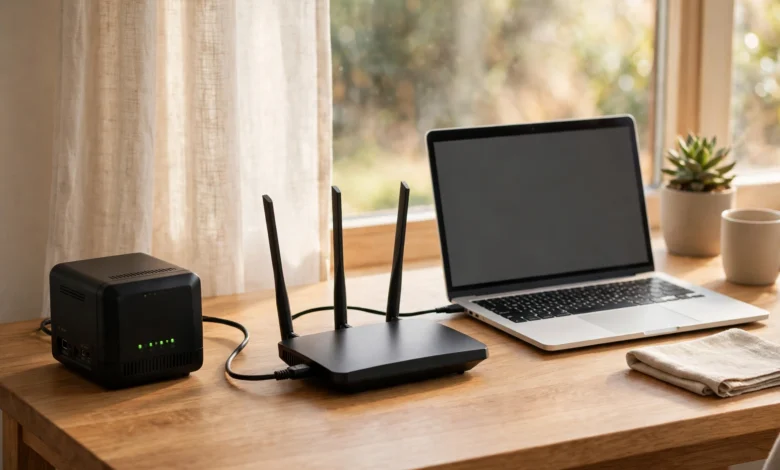
A modem connects your home to your internet provider. It turns the provider’s signal into a standard internet connection. A router takes that connection and shares it with your phones, laptops, and TVs over Wi-Fi and Ethernet cables. You need both jobs done to get online at home. They can live in two boxes or one combined box, called a gateway.
People often use the two words as if they mean the same thing. They do not. The modem vs router question comes down to two different jobs. This guide explains each box, how they work together, and which setup fits your home. Read on for a plain-English modem vs router breakdown.
What Is a Modem?
A modem is the box that links your home to your internet provider. It takes the provider’s signal from the cable or phone line and turns it into an internet connection your devices can use. It also sends your outgoing data back the same way. The name comes from its job: modulator-demodulator.
The modem is the first box in the chain. It plugs into the wall line that carries your service. A cable modem has a round, threaded coax connector. For DSL, the modem uses a small phone-style jack. A standalone modem usually has one Ethernet port. That port feeds one device, and that device is normally the router.
A modem alone has no Wi-Fi. It cannot build a wireless network. It also stays tied to your provider. The model must sit on the provider’s approved list, and it must be active on your account before it passes internet. For cable internet, many modems support DOCSIS 3.1, the standard used for fast cable plans.
What Is a Router?
A router is the box that shares one internet connection with all your devices. It builds your home network and hands out a local address to each device. Each device’s traffic goes to the right place over Wi-Fi or Ethernet cables. It also adds a firewall between your devices and the internet.
The Wi-Fi name and password you join come from the router. One port on the back, often marked WAN, takes the cable from the modem. The other numbered ports take wired devices, such as a desktop computer or a game console. Wired links suit gear that stays in one spot.
Many routers also offer guest networks and parental controls. Features vary by model, so check the spec sheet before you buy. A router is not tied to your provider. You never register it with your internet company, and any router works with any modem.
What Is the Difference Between a Modem and a Router?
The modem faces your provider, and the router faces your home. Through one connection, the modem brings the internet in. The router splits that connection so many devices can use it at once. One brings it in, and the other spreads it around. For a second opinion, see these independent modem vs router explainers from How-To Geek and PCMag.
Modem vs Router Side by Side
| Feature | Modem | Router |
|---|---|---|
| Main job | Connects your home to your provider | Shares the connection with your devices |
| Connects to | Your provider’s line | Your modem |
| Wi-Fi | None on its own | Creates your Wi-Fi network |
| Wired ports | Usually one Ethernet port | Several Ethernet ports |
| Tied to provider | Yes, must be approved and active | No, any router works |
| Without it | No internet at all | No Wi-Fi and no sharing |
Do You Need Both a Modem and a Router?
Yes, you need both jobs done, but not always two boxes. A single wired computer can run on a modem alone. Wi-Fi or more than one device needs a router too. Most homes use both, either as two boxes or one gateway. Once you see the modem vs router roles clearly, choosing becomes simple.
Start by looking at the box you already have. If one box joins the wall line and also broadcasts your Wi-Fi, it is a gateway, and both jobs are covered. A connection that ends at a standalone modem still needs a router for Wi-Fi. If you only ever use one wired computer, a modem alone can work, though most homes outgrow that fast.
What Is a Modem-Router Combo (Gateway)?
A gateway is one box that does both jobs. It connects to your provider like a modem and shares the connection like a router. Most internet providers rent or supply gateways. You get one box, one power cord, and one setup process.
A gateway suits homes that want the simplest path online. Setup is short, and support comes from one company. The trade-off is control. You cannot upgrade the modem part and the router part apart from each other. If the box fails, you lose both functions at once.
Is a Combo Better Than Separate Devices?
Neither setup wins for everyone. A combo is simpler and takes less space. Separate devices give you more control and let you upgrade each part alone. Pick a combo for ease, and separates for control, coverage, or frequent upgrades at home.
| Combo (gateway) | Separate modem + router | |
|---|---|---|
| Ease of setup | Simple, one box | More steps, two boxes |
| Control | Limited settings | Full settings, firmware choice |
| Upgrades | Replace the whole box | Replace one part at a time |
| Space and cables | One outlet, fewer cables | Two outlets, more cables |
| If one part fails | You lose both functions | You replace only the failed part |
One trap needs care. If you plug your own router into a gateway and leave both routing, you get double NAT. That means two layers of address translation, and it can break some games, port forwarding, and remote cameras. Put the gateway in bridge mode first, so it acts as a plain modem and your router does the routing.
Can You Use a Modem Without a Router?
Yes, but only for one wired device. A modem alone gives you no Wi-Fi and no way to share the connection. You also miss router features like guest networks and parental controls. Most homes will still want a router too.
This setup fits a narrow case: one desktop computer, one cable, and no wireless need. The moment a phone, a TV, or a guest joins the picture, you need a router. A modem alone also leaves your computer facing the internet with less protection than a router firewall gives.
Can You Use a Router Without a Modem?
A router alone can link your devices together, but it cannot reach the internet. It builds a local network with no outside connection. You can share files between devices, but you cannot browse or stream. Internet access needs a modem or provider equipment upstream.
This matters when you test gear. If devices can see each other but nothing loads online, the router may be fine and the modem side may be at fault. A router with no modem is a local network only, not an internet connection.
Can a Router Make Your Internet Faster?
No, a router cannot raise your plan speed. Your provider sets the top speed, and the router only shares it. A weak router can still slow your Wi-Fi, though. Better placement, newer Wi-Fi, or a wired link can restore speeds your plan already pays for.
Two speeds get mixed up here. Plan speed is what your provider delivers to the modem. Home Wi-Fi speed is what reaches each device, and it can fall short for many reasons. Thick walls, a router shut in a cabinet, or an old Wi-Fi standard can all drag it down. Video calls and cloud apps tend to show weak Wi-Fi first, since they need a steady link.
For gear that stays put, use a cable. A desktop computer or a game console gains the most from Ethernet. That point holds for online gaming too, where a wired link cuts lag spikes that Wi-Fi can add.
What About Fiber Internet? Do You Still Need a Modem?
Fiber does not use a standard modem. Your provider installs a box called an ONT, which turns light signals into an internet connection. You still need a router behind it for Wi-Fi and your home network. With fiber, the router is the part you choose.
ONT stands for optical network terminal. It plays the same entry role as a modem, but for fiber lines. Do not buy a cable modem for a fiber line, since modems are line-specific. The same rule holds in reverse: a cable modem only works on cable internet.
How Do You Set Up a Modem and Router?
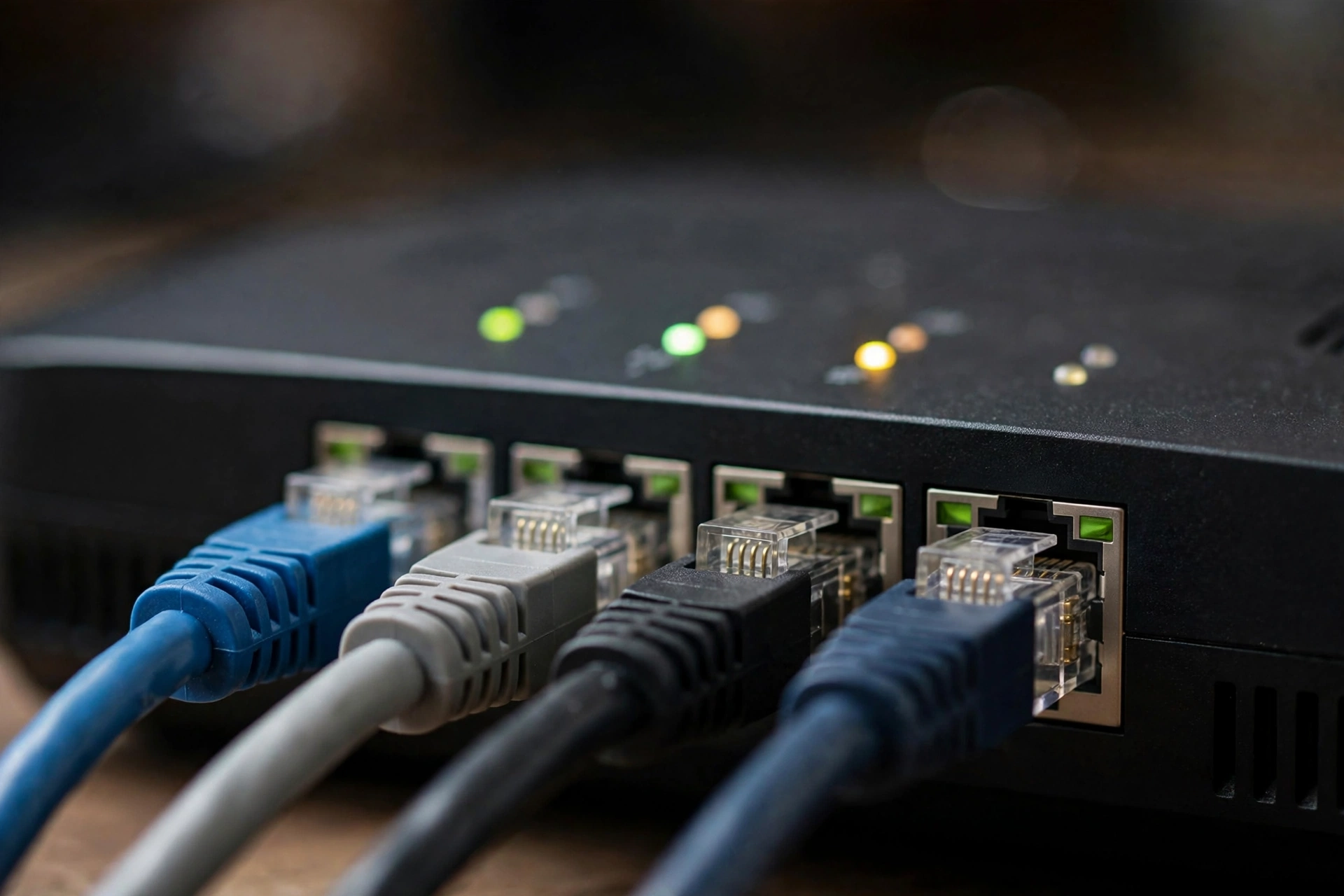
Follow the line in order: wall line to modem, modem to router, router to devices. Connect the modem to the wall line and power it on. Link its Ethernet port to the router’s WAN port. Then set your Wi-Fi name and password on the router.
- Plug the modem into the wall line and power. Wait for its lights to settle.
- Run an Ethernet cable from the modem to the router’s WAN port.
- Power on the router and wait for its Wi-Fi light.
- Join the default Wi-Fi name, then change the name and password.
- Place the router in a central spot, raised up, away from thick walls and metal.
- Wire desktops and consoles with Ethernet where you can.
New modems may need activation on your account first. Your provider can do that by phone or through its app. If the internet light stays off after setup, check the wall cable first, then ask your provider whether the line is active.
How Do You Tell Whether the Modem or the Router Is Broken?
Start with what is failing. If every device is down, even a wired computer, check the modem and the provider first. If only Wi-Fi fails, or only some rooms fail, the router is the likely fault. Restart the modem first, then the router.
- All devices down, wired ones too: suspect the modem, the wall line, or an outage.
- One wired computer works but Wi-Fi fails: suspect the router.
- Some rooms fail while others work: suspect Wi-Fi coverage, not the modem.
- Plug a computer straight into the modem. If it loads pages, the router is at fault.
Restart in order: modem first, then router, with a short wait between them. A factory reset is a last resort, since it wipes your Wi-Fi name and password. Note those down before you reset anything.
How Do You Choose the Right Setup?
Match the setup to your connection, plan, and home. Cable needs an approved modem, while fiber needs only a router behind the ONT. Small homes do fine with a gateway. Large homes or many devices suit separate devices or a mesh system.
- Connection type first: cable, DSL, fiber, or 5G home internet each need the right entry box.
- For cable, check your provider’s approved modem list before you buy.
- Match the gear to your plan speed. Do not pay for power your plan cannot use.
- Count your devices and rooms. More of both points toward separates or mesh Wi-Fi.
- Pick a gateway for ease, and separates for control and upgrades.
Frequently Asked Questions
Can I buy my own modem instead of renting one from my ISP?
For cable internet, often yes. Pick a model on your provider’s approved list, then ask them to activate it on your account. For fiber and 5G home internet, the entry box usually comes from the provider, so your choice may be limited to the router behind it. Owning avoids monthly rental fees, which add up over time, but only buy a modem that matches your line type and plan speed.
What is bridge mode, and when should I use it?
Bridge mode turns a gateway into a plain modem. The gateway stops routing, and your own router takes over the home network. Use it when you add your own router behind a provider gateway. Without bridge mode, both boxes route at once, and that double NAT can break some games, port forwarding, and remote cameras.
How often should you replace a modem or router?
There is no fixed date. Replace a box when it cannot keep up: your plan speed rose past it, dead zones grew, or updates stopped. As a rough guide, many guides put a modem’s useful life around five to seven years, while routers tend to be replaced sooner as Wi-Fi standards move on. If your Wi-Fi feels slow but your plan did not change, the router is the first place to look.
Do I need a modem for 5G home internet?
No retail modem is needed. The provider supplies a 5G gateway that takes the mobile signal and shares it as Wi-Fi and Ethernet. That box plays the entry role a modem plays on cable. Your choice may be limited to adding your own router behind it, so check your provider’s equipment rules before you buy anything.